


Buying Guide
How to Buy a Smart Digital Family Calendar
This quick guide shows what to look for when buying a smart digital family calendar or touchscreen wall planner. It covers the key buying factors, the common product types, the must-have features, and where to buy so you can decide fast and confidently.
Key factors to consider
Think about where you will place the device, who will use it, and how you want it to connect to your existing systems. Important items to check before you buy:
- Placement and size: measure the wall or counter and pick a screen that fits sight lines and traffic patterns.
- Calendar compatibility: confirm automatic sync with Google, Outlook, iCloud, and popular family services.
- Control and access: look for a companion app, direct on-device editing, and multiuser support.
- Power and installation: these devices are typically plug-in. Verify outlet location, included mounting hardware, and US-style plugs if you are in the United States.
- Privacy and updates: check how account data is handled, available privacy settings, and firmware update policies.
- Budget and ongoing costs: expect basic models under $300 and premium sizes around $600, plus optional subscription fees for advanced features.


Types and sizes and how to choose
Choose a type based on room and family needs. Typical categories:
- Compact desktop units: work well on counters or desks, best if you need a small command center.
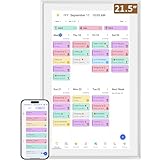
- Medium wall displays: around 21 inches, good balance between visibility and price for kitchens and entryways.
- Large displays: 27 inches or more, ideal for open living spaces where the calendar must be visible from a distance.
- Basic calendar mode vs Android or app-enabled mode: basic calendar-first devices keep the interface focused. Android-style or dual-mode devices let you install apps, show photos, and act as a mini smart hub. Pick the mode that matches how much extra functionality you want.
Important features and specs to check
Focus on real-world features that change daily use:
- Touchscreen and resolution: a responsive HD touchscreen makes adding events and checking chores fast.
- Auto sync and multi-calendar support: native sync with Google, Outlook, iCloud, Yahoo, and family apps avoids double entries.
- Chore charts and rewards: look for built-in family task systems if you want to gamify routines.
- Voice assistant and microphones: voice controls are convenient but confirm which assistant is supported and how many mics for reliable pickup.
- Photo frame and screensaver settings: if you want family photos, choose models that support albums and include auto brightness or anti-glare glass.
- Mounting flexibility: portrait and landscape support plus included mounting guides make installation easier.
- Connectivity and power: verify Wi-Fi bands supported, Bluetooth or other integrations, and whether the device requires constant power.

Where to buy, mistakes to avoid, and expert tips
Online retailers usually offer the best prices and a wide selection, while stores let you see screen quality in person. Keep these recommendations in mind:
- Buy online for deals and reviews; check shipping, return windows, and whether free shipping or seasonal discounts are available.
- Visit a retail store to test touchscreen responsiveness and finish if you are unsure about size or look.
- Common mistakes to avoid: buying the wrong size, assuming all calendars sync with your accounts, overlooking subscription fees, and ignoring mounting or outlet needs.
- Expert tips: choose a medium-size display for most homes, prefer models with multi-calendar auto-sync and a solid companion app, enable privacy settings and firmware updates immediately, use rewards features to involve kids, and secure the unit to the wall to prevent accidents.
Final Thoughts
Pick the size that fits your space, confirm calendar and smart home compatibility, and check whether you need extra app or subscription features. Measure, read reviews, and verify mounting and power needs before you buy to avoid returns and get a useful family hub from day one.